Follow along step by step
Someone uploaded inaccurate photos to your Business Profile, and they are confusing customers. You can’t delete these user-contributed photos directly, but you can report them for removal. In our experience, a well-categorized report often leads to the photo being taken down.
What counts as photos that "don't belong"
Google’s policy will remove user-contributed photos if they fall into one of these categories:
- Not a photo of the business. The photo is of a different place entirely.
- No longer accurate. The photo shows an interior or storefront that no longer exists (renovation, closure, ownership change).
- Inappropriate content. Nudity, hate speech, illegal activity, irrelevant content.
- Personal information visible. Photos that show identifiable people without consent, or that include visible private information.
- Copyright violation. Photos copied from your website or other sources without permission.
- Misleading content. Staged photos designed to mislead viewers about the business.
What Google won’t remove just because you ask:
- Unflattering photos taken by real customers (a poorly lit interior shot from a real visit)
- Photos showing real but minor issues (a chipped counter, a smudged window)
- Older photos that are still technically accurate
The reporting process
The follow-along walkthrough at the top of this post shows the same clicks. The written steps and screenshots follow.
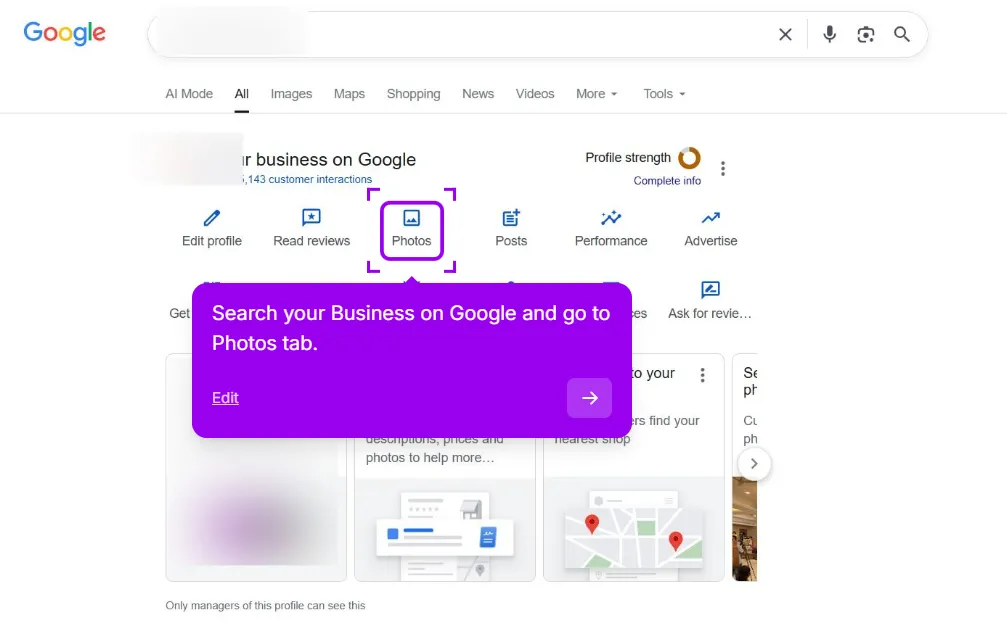
Step 1: Open your Business Profile and go to Photos
Search your business name on Google while signed in to the account that manages the profile. On the “Your business on Google” dashboard, click Photos.
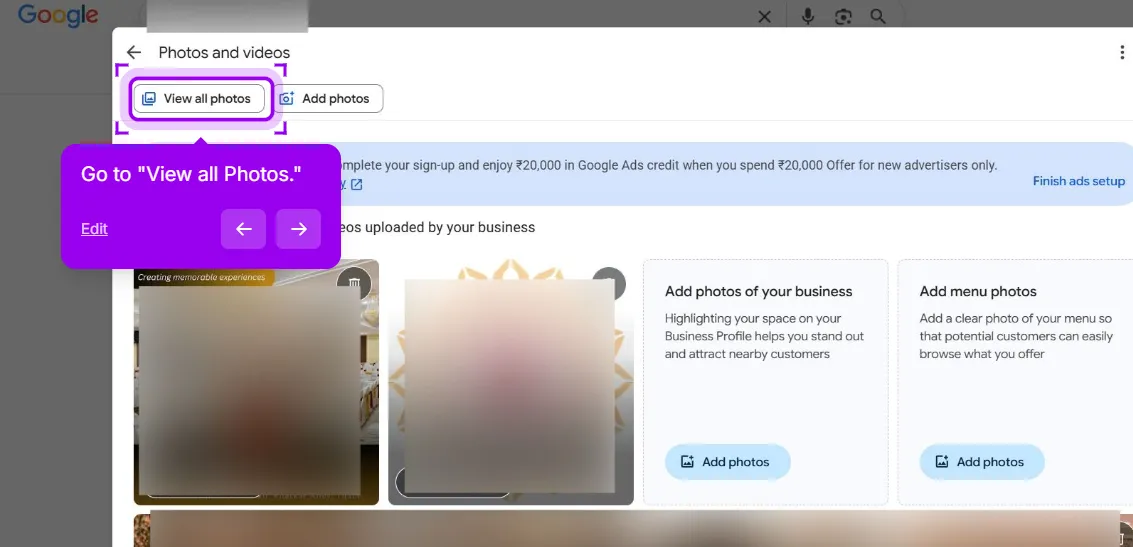
Step 2: Click View all photos and find the photo
In the Photos and videos panel, click View all photos. Customer uploads are mixed in with your own; scroll through or use the filter chips at the top of the viewer to find the one you want to report.
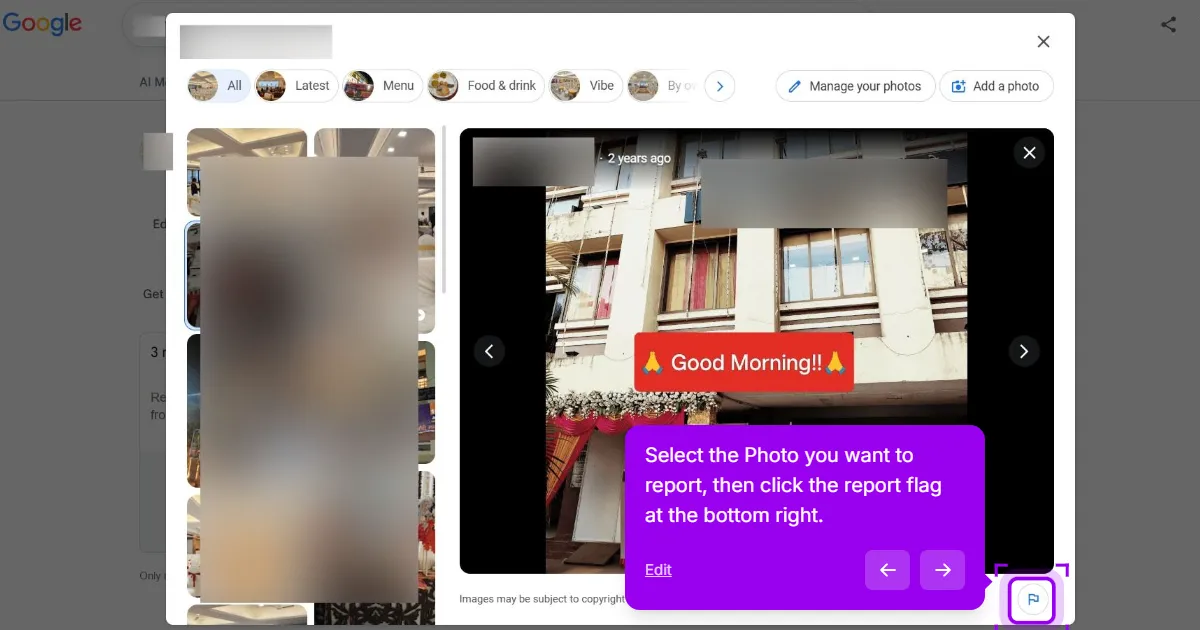
Step 3: Open the photo and click the flag icon
Click the photo to open it in the viewer. The report flag icon sits at the bottom right of the viewer.
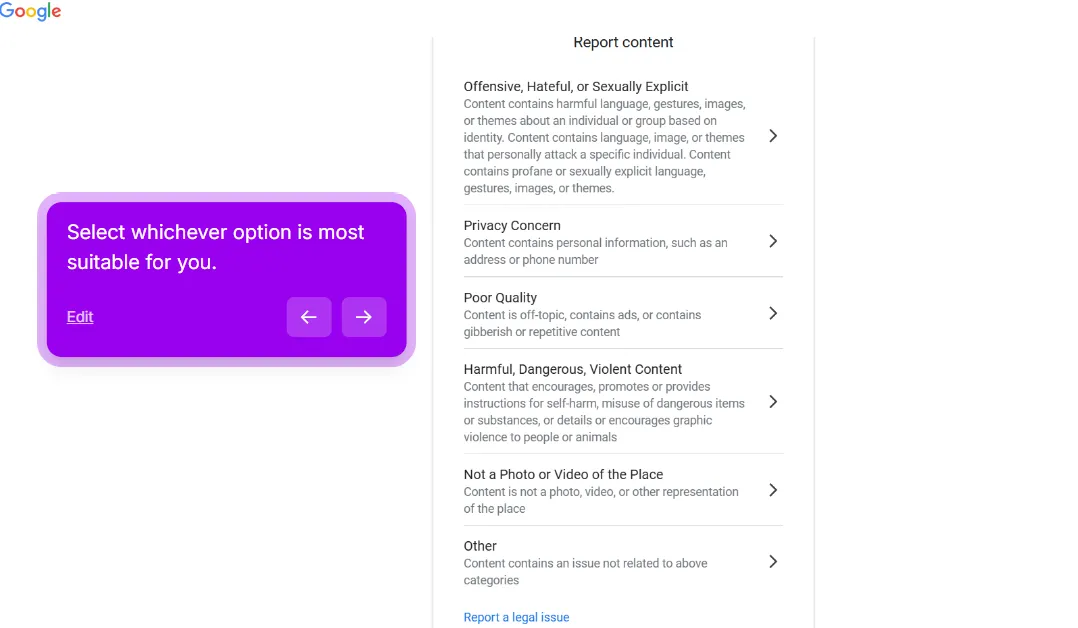
Step 4: Select the reason that matches
Google’s Report content menu lists these reasons. Pick the one that matches the problem, because a report filed under the right reason is far more likely to be approved:
- Not a Photo or Video of the Place for wrong-business photos, the most common case
- Privacy Concern for photos that show identifiable people or private information without consent
- Offensive, Hateful, or Sexually Explicit for nudity, hate speech and personal attacks
- Harmful, Dangerous, Violent Content for content that promotes self-harm, dangerous acts or violence
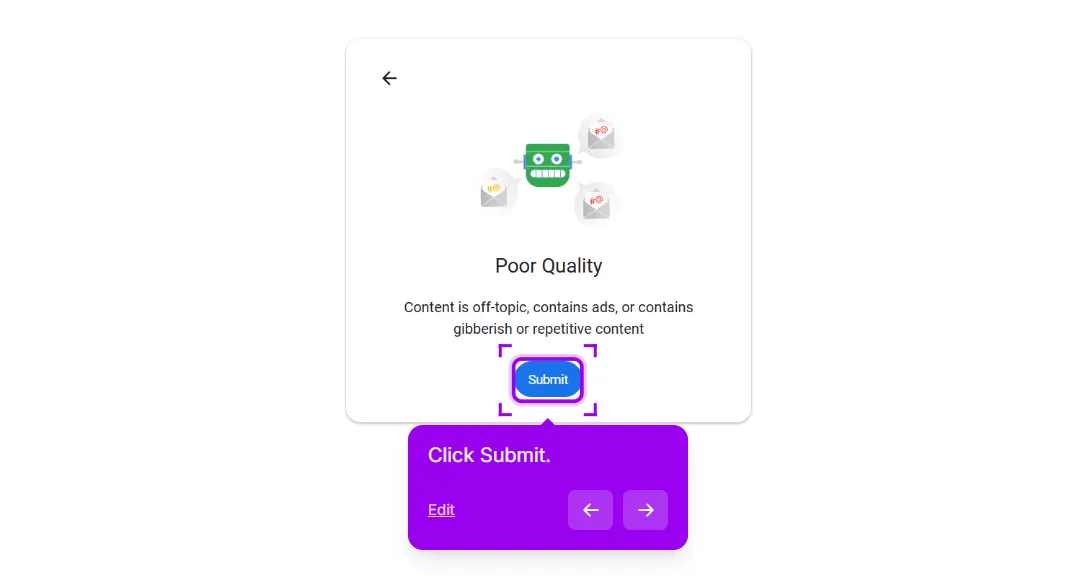
- Poor Quality for off-topic photos, ads and gibberish
- Other for anything that doesn’t fit, including outdated photos of a previous interior or a closed location
- Report a legal issue, the link under the list, for copyright complaints, which go to Google’s legal removal process rather than the content review queue
Google changes the wording of this menu from time to time. The labels above are what it showed when we recorded the walkthrough in September 2026.
Step 5: Confirm your reason and click Submit
Google shows the reason you picked on a confirmation screen. Check it and click Submit.
After you submit, wait
Google doesn’t publish a turnaround time for user-contributed photo reports, so timing varies. If a report is approved, the photo comes down after the review.
In our experience, well-categorized reports are removed more often than not. The rest get rejected for various reasons (the policy reviewer didn’t see the issue, the photo was borderline, etc.).
If denied, escalate
For a denied report on a photo that genuinely violates policy:
- Go to support.google.com/business/answer/6130451 for the official process documentation.
- Use the GBP Help Form with the photo URL and a detailed explanation.
In your message:
- The specific URL of the photo
- The reason you originally reported it
- Why you believe the denial was incorrect
- Any supporting evidence (screenshots of your actual storefront, copyright documentation, etc.)
A manual review through the help form generally takes longer than the in-app flag, and Google doesn’t publish a timeline for it. In our experience, a documented manual review is denied less often than the first-pass flag.
Specific scenarios
Photos of a different business
Customers often upload photos to the wrong business profile, especially at addresses with multiple businesses. To fix this, report the photo as Not a Photo or Video of the Place. If a customer uploaded several wrong photos, report each one individually for the best chance of removal.
Outdated photos after renovation or closure
You renovated. Your shop looks completely different now. Old photos of the previous interior are misleading customers about what to expect.
The current report menu has no dedicated outdated option, so report the photo as Other. Then include in any follow-up support contact:
- The date of your renovation
- Photos of the current interior (so reviewers can see what’s actually there now)
- A short note explaining the change
In our experience, the better you document the change, the more likely an outdated-photo report is to be approved.
Photos uploaded by competitors
Sometimes the photos are not accidental; a competitor may upload unflattering images to your profile. Report them as Not a Photo or Video of the Place if they aren’t of your business, or Other if they are staged to mislead. Avoid naming competitors in your report; it doesn’t affect the review and can be counterproductive. If the same pattern continues (multiple bad-faith uploads over time), escalate via the Business Redressal Complaint Form. Include all the photo URLs and a description of the pattern.
Photos of identifiable people without consent
Photos that clearly show identifiable customers or staff without consent are removable.
Report as Privacy Concern. If the content is also explicit or abusive, Offensive, Hateful, or Sexually Explicit applies instead.
If the photo shows minors, add as much detail as you can in any follow-up to the help form.
Copyright violations
If a customer uploads a photo from your website or another copyrighted source, use Report a legal issue at the bottom of the report menu, or go straight to a formal DMCA takedown via Google’s legal removal tool with proof of ownership (the original photo, your website, dated documentation). A DMCA takedown is a formal process and generally more effective for genuine copyright issues than a standard report.
What you should do instead
The best way to counter low-quality user photos is to upload plenty of high-quality owner photos. A consistent flow of strong owner images tends to overshadow the occasional poor customer upload.
- Upload 5 to 10 high-quality photos every month. Interior, exterior, products, team, customer-experience moments.
- Make sure your cover photo is excellent. This is the first photo customers see.
- Keep up with the photo flow. Even one bad customer photo can sink the visual impression if it’s the only recent photo.
A steady flow of owner photos helps keep the bad customer ones out of view even when you can’t get them removed.
This post is one piece of a bigger playbook. The full guide covers all 16 common Google Business Profile crises in one place: The GBP cheat sheet.
Photos that won’t come down despite reports? Send us the URLs and we’ll review the case.


