Follow along step by step
If you can’t log into your Google Business Profile, it may be because you never had access, an agency set it up and never handed over the keys, or a former partner controls it.
Google has a recovery process for this called the request ownership flow, in which the current owner has 3 days to respond. The whole thing can take anywhere from a few days to a few weeks, depending on whether they reply and whether verification is needed.
One scope note. For routine handovers (a manager leaving, a sale, an agency offboarding), use the ownership transfer guide. This post is for cases where the current owner is unreachable or uncooperative.
How Google’s ownership transfer works
Every Google Business Profile has one primary owner (the original account) and any number of managers (people the primary owner has added). If you’re not on the list, you can’t edit the profile.
If you can verify you have a legitimate connection to the business, Google has a built-in process to transfer ownership away from someone who’s unreachable or uncooperative.
The official guide: Request ownership of a Business Profile.
Step 1: Find your profile on Google or Google Maps
Search for your business by exact name on Google or on Google Maps. The listing should appear with the standard info card. If the profile genuinely doesn’t exist (no result anywhere), the issue isn’t access; you need to create a new profile. The recovery flow only works for existing profiles.
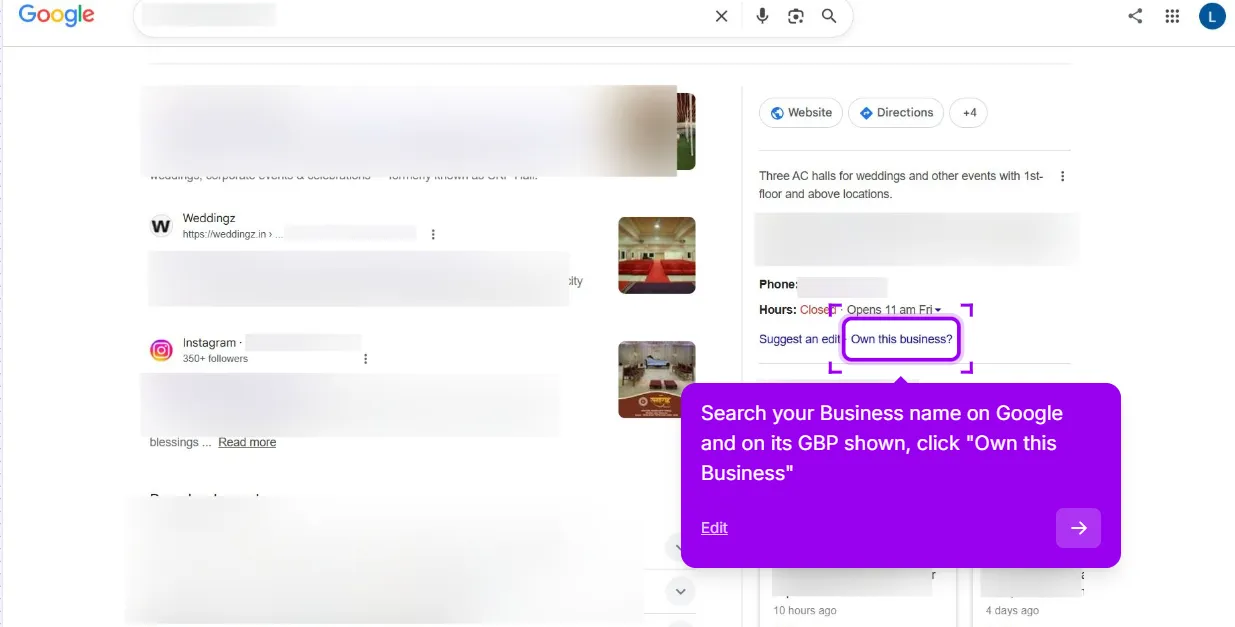
Step 2: Click “Own this business?” or “Claim this business”
On the listing’s info card in Google Search, the Own this business? link sits next to Suggest an edit, just under the hours and phone number. On some listings it reads Claim this business instead.
Step 3: Request access
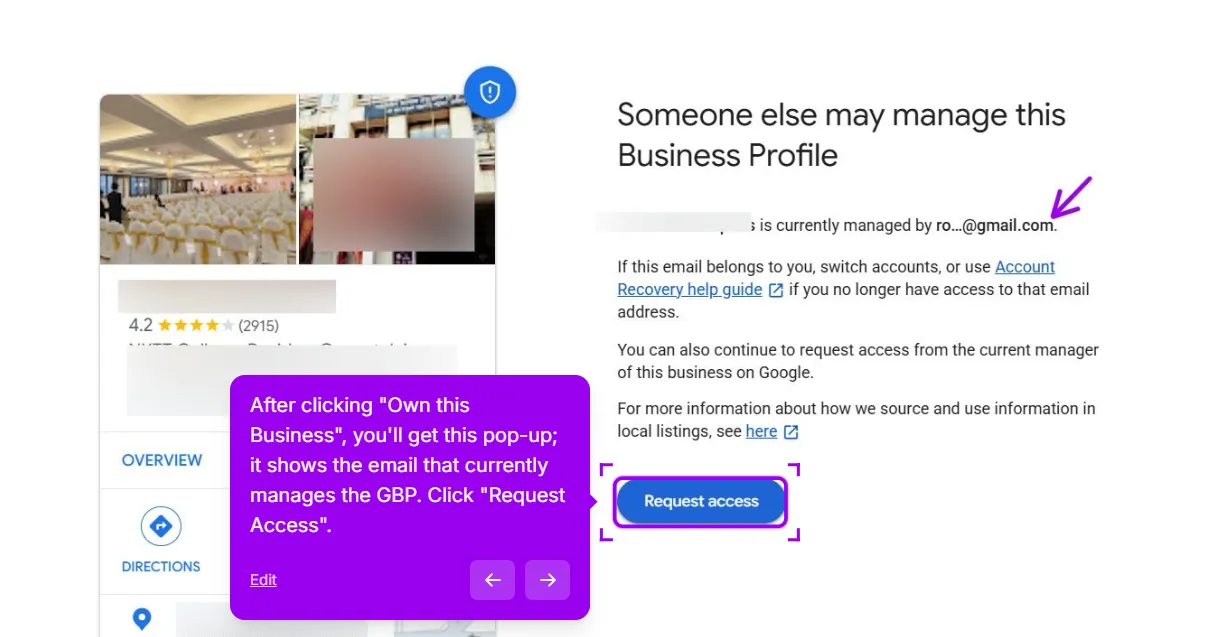
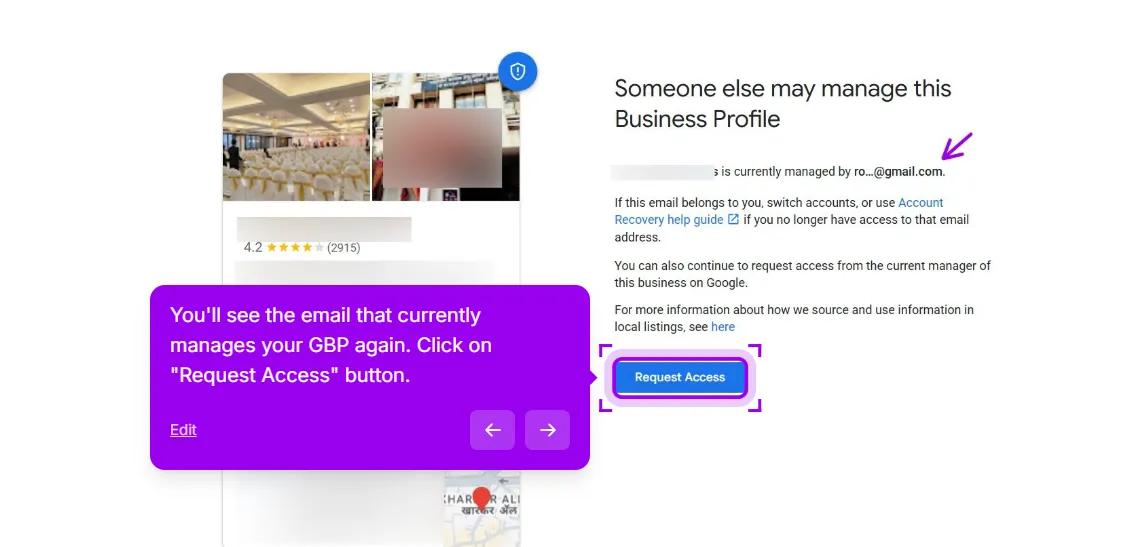
After clicking, Google will:
- Show you a partial email of the current manager (e.g.,
c***@gmail.com). - Offer a Request access button.
Click Request access. Fill out the form:
- Select Ownership as the access level (not just Manager; you want full control).
- Explain your relationship to the business (current owner, current manager, etc.).
- Provide your contact information. Submit.
The Google Maps route
You can also start the same request from Google Maps:
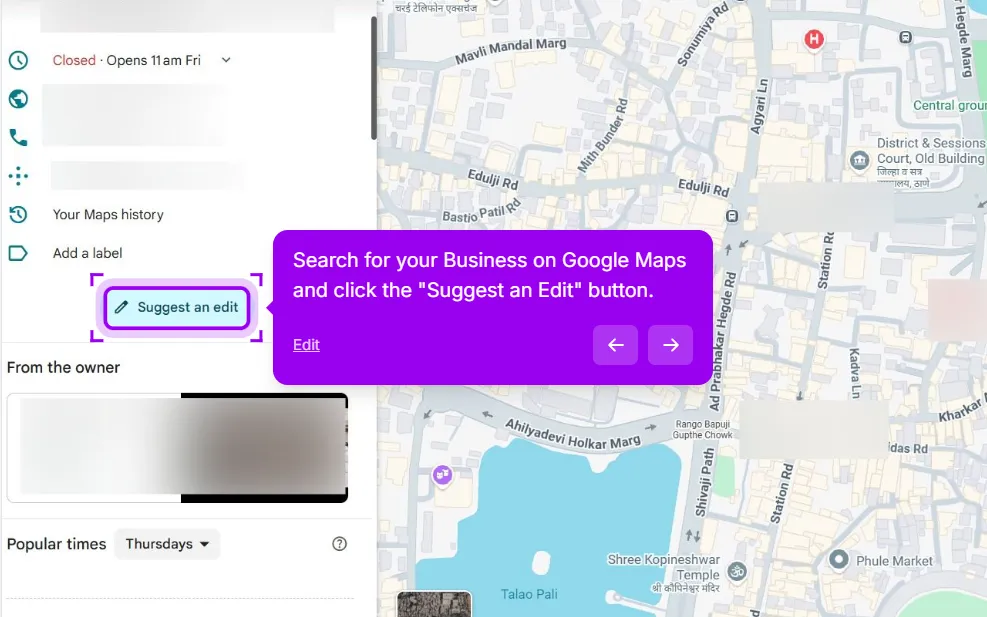
Maps step 1: Search for your exact business on Google Maps and click Suggest an edit. The button sits in the listing’s side panel, below the hours, phone and website rows.
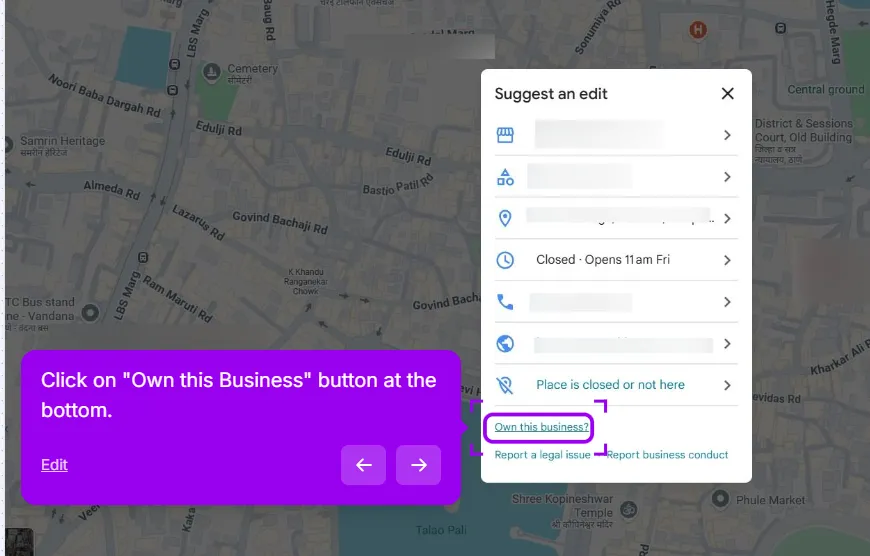
Maps step 2: In the pop-up, click Own this business? It sits at the bottom of the Suggest an edit list, under Place is closed or not here.
Maps step 3: Click Request access. Google shows the same partial email of the current manager (e.g., c***@gmail.com) and the Request access button. Click it and fill in the form exactly as above.
Step 4: Wait 3 days
The current owner gets an email from Google with your request. They have 3 days to respond:
- If they approve: ownership transfers to you, and you get an email confirming.
- If they decline: Your request is rejected. You can appeal; see Step 5.
- If they don’t respond within 3 days: you may have the option to claim the profile yourself through a verification path (see Step 6). Google notes this option isn’t always available.
Google sets the response window at 3 days. If the current owner ignores the email, Google says you may have the option to claim the profile yourself, though it notes that option isn’t always available.
Step 5: If your request is declined
You can appeal through the GBP Help Form. Go to support.google.com/business/gethelp. Select the business. Search for “Ownership dispute” or “Reclaim ownership.”
In the appeal:
- Document your relationship to the business
- Explain why the current owner shouldn’t have access (no longer employed, sold the business to you, etc.)
- Attach proof: articles of incorporation, business purchase agreement, employment termination, etc.
Manual review can take several days or longer, and Google doesn’t publish a fixed turnaround. Plan for it to take a while rather than counting on a specific date.
Step 6: If they don’t respond at all
After 3 days of silence, Google may email you with a verification link. You complete identity verification (this could be a postcard, phone call, or document submission depending on the business).
If the claim goes through, you typically become the primary owner and the previous owner is moved to a manager role or, in some cases, loses access. Once you’re in, you can review and update the manager list. This path isn’t guaranteed, and Google decides whether it opens for you.
Documents that strengthen your case
If you anticipate disputes, gather these in advance:
- Articles of incorporation or LLC formation documents showing you as a founder, officer, or owner
- Business purchase agreement if you bought the business
- DBA registration in your name
- Recent tax filings showing you as the operator
- Lease or property tax bill for the business address in your name
- Photo evidence of you at the business location with branded signage visible
You don’t submit these unless asked, but having them ready means a fast response when Google requests proof.
Common scenarios
Ex-spouse situations
The original owner’s ex-spouse may have set up the profile and may not cooperate after the divorce. To gain access, request it, wait 3 days, and complete verification. If the divorce settlement grants the business to one party, use that document as proof. Google verifies your connection to the business, so follow the request-and-verification process and keep your documentation ready.
Former agency situations
Common scenario: the marketing agency that built your website set up your Google profile under their account, making it hard to access. To regain control, request access; they may take up to 3 days to respond. If they demand payment to release ownership, whether they are entitled to it depends on your contract. If they don’t respond, you might have the option to claim the profile, but that is ultimately up to Google.
Disgruntled former employee
Variations: a former marketing employee, an ex-business partner, or a fired manager using their personal Google account. The process involves requesting access and documenting their separation from the business if they don’t cooperate. Google’s request-and-verification flow is the official method, though it may not resolve every case.
What not to do
- Don’t create a new duplicate profile to bypass the access issue. Duplicate listings are against Google’s guidelines and can get flagged, merged, or suspended, which usually leaves you worse off than when you started.
- Don’t harass the current owner. Tempting, but irrelevant to Google’s decision. Their system reviews the documentation, not your relationship history.
- Don’t lie about your relationship to the business in the request form. Google verifies before granting access. False claims can result in your account being restricted from claiming profiles in the future.
- Don’t skip the request flow and try the GBP Community first. Volunteers can’t grant access. Use the official path.
If anything weird happens during this process (error messages, the form refusing to submit, the current owner’s response being unclear), report it to support via the GBP Help Form. The community Product Experts can sometimes help unstick complex cases.
This post is one piece of a bigger playbook. The full guide covers all 16 common Google Business Profile crises in one place: The GBP cheat sheet.
Stuck on an access dispute? Send us the situation and we’ll help you find the right path.
This guide is general information, not legal advice, and isn’t affiliated with Google. Use Google’s official Business Profile help channels for anything involving your account, follow their current instructions, and treat any timeline or outcome here as a best effort, not a guarantee. If ownership of your business itself is contested (a partnership split, a divorce, a sale), consider talking to a lawyer before submitting documents.


